Test scenarios

General information​

We recommend running the test cases before processing real payments. This section provides detailed scenarios that allow you to:

  • verify the correctness and stability of your integration
  • simulate various payment situations to ensure the system is ready to handle real transactions and to prevent potential operational issues

Requirements:​

  1. You have a merchant portal account and an existing test project with API keys.
  2. The test project configured by technical support.
  3. Integration completed.

Direct integration​

Prerequisites for starting the test:

  1. You have a direct integration configured.
  2. A test project with API keys is created and active.
  3. Webhook handling and status‑code processing are set up.
Test caseAction
One-step payments (purchase)One‑stage payment - a payment flow where the full amount is captured from the payer in a single transaction at the time of purchase.
Features:
  1. Charging can be performed using card data (cc_number, exp_month, exp_year, card_cvv), a token (cc_token), or A/GPay.
  2. 3DS verification control.
  3. Refunds available after purchase.
  4. Ability to obtain a receipt.
  5. Payment fiscalization.
info

If PCI DSS certification is in place, card data may be submitted in requests.
If PCI DSS certification is not in place, payments must use tokens obtained via the Tokenization widget.

  • Payment by Visa and Mastercard
  1. Create a payment request including cc_number, exp_month, exp_year, card_cvv.
  2. Use test card numbers according to the card brand.
    For example:
    Visa: 4242 4242 4242 4242
    Mastercard: 5454 5454 5454 5454
    The payment may immediately receive a final status of Success, or it may require 3DS/OTP verification. If the response contains "status_description": "3DS verification is required", open the URL in user_action_url and complete the ACS verification by clicking CONFIRM.
  3. Receive the webhook on your server — it will contain the payment status.
  • Payment via GPay wallet
  1. Obtain your Merchant ID and follow the integration procedure provided by Google Pay™.
  2. Create a request to obtain a token using the following values:
    • set the gateway parameter in the script to the constant value of finline;
    • the value of the gatewayMerchantId parameter corresponds to the identifier of your test project (pos_id).
  3. Receive the PaymentData item in the Google response that contains the paymentMethodData.tokenizationData.token field with the safely encrypted Google Pay™ token.
  4. Create a payment request using the obtained token. Use the following values in the standard request:
    • mode: direct
    • cc_token: gpay:${base64_google_encrypted_token}
    • currency: XCD
    • description: rejected (for unsuccessful payment)
    info

    In this case 3DS verification will not occur - the operation will immediately receive a final status.

  5. Receive the webhook on your server — it will contain the payment status.
  • Payment via Apple Pay wallet
  1. Create an Apple Developer account associated with one of the following programs: Apple Developer Program or Apple Developer Enterprise Program.
  2. Obtain your Apple Merchant ID.
  3. Create the Apple Pay certificates. Send your Merchant ID to support@finline.io with the subject "Applepay connection".
  4. Register and verify the domain where the Apple Pay button will be displayed.
  5. Initialize a payment session and create a request to obtain a token.
  6. Receive the safely encrypted Apple Pay™ token.
  7. Create a payment request using the obtained token. Use the following values in the standard request:
    • mode: direct
    • cc_token: applepay:${base64_applepay_encrypted_token}
    • currency: XCD
    • description: rejected (for unsuccessful payment)
    info

    In this case 3DS verification will not occur - the operation will immediately receive a final status.

  8. Receive the webhook on your server — it will contain the payment status.
  • Payment with 3DS/non‑3DS
  1. Create a payment request with card data and include the order_3ds_bypass parameter.
    Use:
    For 3DS: order_3ds_bypass=always - test card 4242 4242 4242 4242
    Without 3DS: order_3ds_bypass=never - test card 5555 5555 5555 4444
  2. Receive the webhook on your server — it will contain the payment status.
  • Payment with products (for fiscalisation)
  1. Create a payment request including product data.
    products - an array of items to be fiscalized. There can be multiple products, but the total sum price*qty must equal the payment amount (amount).
  2. Receive the webhook on your server — it will contain the payment status.
RefundRefund - returning funds from the merchant (or payment service) to the payer after a payment has been processed.
A refund can be issued only for a payment with status “success”.
It can be a full refund or a partial refund. Multiple partial refunds are allowed up to the original transaction amount.
  • Successful full refund
After a successful payment (Purchase):
  1. Perform a full refund for the entire amount - 10 XCD.
    Use the order_id of the transaction being refunded (this is the order_id of the successful Purchase).
  2. Receive the refund webhook on your server — it will contain the refund status.
  • Successful partial refund
After a successful payment (Purchase):
  1. Perform a partial refund for an amount less than 10 XCD (e.g., 5 XCD or 8 XCD).
    Use the order_id of the transaction being refunded (this is the order_id of the successful Purchase).
  2. Receive the refund webhook on your server — it will contain the refund status.
  • Successful full refund for a fiscalised payment.
After a successful payment (Purchase):
  1. Perform a full refund for the entire amount - 10 XCD.
    The refund request must also include details about the product being refunded.
  2. Receive the refund webhook on your server — it will contain the refund status.
Get receiptA receipt is a document for your customer that confirms a successful payment/transaction. It can be in two formats: PDF or raw HTML.
To obtain a receipt, use the following request.
Full‑cycle test of One‑step payment (purchase):
Payment (card, A/GPay) with full or partial refund.
  1. Initiate a payment request for 10 XCD using a cc_token or card data.

    Example request with cc_token:

    $ curl "https://api.finline.io/api/v1/payment"
    -H "Content-Type: application/json"
    -H "X-API-AUTH: CPAY-HMAC-SHA256 ${API_KEY}:${SIGNATURE}"
    -X POST -d '{
    "pos_id": "${POS_ID}",
    "mode": "direct",
    "method": "purchase",
    "amount": 10,
    "currency": "XCD",
    "description": "Order description",
    "order_id": "123",
    "order_3ds_bypass": "always",
    "cc_token": "ODJkZjBhNmY2OTMyNDJlN2wjMjFjfTQzOXU3ZDFhYzI6cWJmWHFmMHlzM3hYaXJMWEZv",
    "server_url": "https://callback.blackhole.com/callback",
    "result_url": "https://example.com/result",
    "payload": "sale=true",
    "customer_referrer": "https://example.com",
    "browser_fingerprint": {
    "browserColorDepth": "24",
    "browserScreenHeight": "860",
    "browserScreenWidth": "1600",
    "browserJavaEnabled": "false",
    "browserLanguage": "uk-UA",
    "browserTimeZone": "Europe/Kiev",
    "browserTimeZoneOffset": "-120",
    "browserAcceptHeader": "text/html,application/xhtml+xml,application/xml;q=0.9,image/webp,image/apng,*/*;q=0.8",
    "browserIpAddress": "127.0.0.1",
    "browserUserAgent": "Mozilla/5.0 (Windows NT 6.1; Win64; x64) AppleWebKit/537.36 (KHTML, like Gecko) Chrome/88.0.4324.146 Safari/537.36"
    }
    }'
  2. Receive the response and ensure the payment status is Success.
    Example:
    {
    "payment_id": "9b1392a5-d030-4e85-b02d-9b7191ea2a5e",
    "order_id": "123",
    "gateway_order_id": "9B39A076243EB3EBB0925EAA981763AC:158545961",
    "billing_order_id": "11231231231",
    "transaction_id": "a8d80c86-0c7b-41bc-b63d-1e78f80edcd9",
    "pos_id": "dc728de1-51ef-4ef1-80f7-3b44b07b5667",
    "mode": "direct",
    "method": "purchase",
    "amount": 10,
    "currency": "XCD",
    "description": "Order description",
    "status": "pending",
    "status_code": "2122",
    "status_description": "3DS verification is required to finish the transaction.",
    "user_action_required": true,
    "user_action_url": "http://secure.secure3d.net/s3st?a=start_3ds&tid=a8d81c860c7b41bcb65d1e78f80edcd923ac18d5dd1d4a37e6c7df7d5e4bec74ab5d790b",
    "eci": "7",
    "mcc": "4900",
    "options_3ds": "supported",
    "cc_mask": "424242******4242",
    "cc_token": "ODJkZjBhNmY2OTMyNDJlN2wjMjFjfTQzOXU3ZDFhYzI6cWJmWHFmMHlzM3hYaXJMWEZv",
    "cc_token_expiration": "2020-10-10T10:10:22",
    "customer_id": "123",
    "customer_ip": "194.183.171.239",
    "customer_fname": "Tom",
    "customer_lname": "Hanks",
    "customer_email": "tom.hanks@example.com",
    "customer_phone": "+380999999999",
    "customer_country": "UA",
    "result_url": "https://example.com/result",
    "created_at": "2018-10-10T10:10:22.100",
    "processed_at": "2018-10-10T10:10:23.300",
    "fee": {
    "amount": 0,
    "currency": "XCD"
    },
    "percent_fee": {
    "amount": 0,
    "currency": "XCD"
    },
    "fixed_fee": {
    "amount": 0,
    "currency": "XCD"
    },
    "payload": "sale=true",
    "bank_short_name": "Bank name",
    "receipt_url": "https://api.finline.io/public/receipt/12491284012940129402424124124124124ffef3re3rf32f2vf"
    }
  3. Process the webhook and ensure all required parameters needed for further payment handling are received (for example: status, amount, order_id,fee).
  4. Send a 200 OK response from your server confirming successful receipt of the webhook.
  5. Create a request for a full or partial refund.

    Example:

    $ curl "https://api.finline.io/api/v1/refund"
    -H "Content-Type: application/json"
    -H "X-API-AUTH: CPAY-HMAC-SHA256 ${API_KEY}:${SIGNATURE}"
    -X POST -d '{
    "pos_id": "${POS_ID}",
    "order_id": "123",
    "order_currency": "XCD",
    "refund_amount": 8,
    "comment": "10101",
    "server_url": "https://callback.blackhole.com/callback/"
    }'
  6. Check that the refund status is Success.
Expected result: Funds are returned to the customer's account.

Hosted integration​

Prerequisites for starting the test:

  1. You have a Hosted integration configured.
  2. A test project with API keys has been created and is active.
  3. Webhook handling and status‑code processing are set up.
Test caseAction
One-step payments (purchase)
  1. Create a payment request for 10 XCD.
    A successful request returns an HTTP 303 with a Location header to which the client should be redirected to continue payment.
    Example:
    HTTP/2 303
    # .. other headers
    location: https://api.finline.io/api/v1/checkout/1b806782-3d97-4444-abb9-6e4b45d34663/form
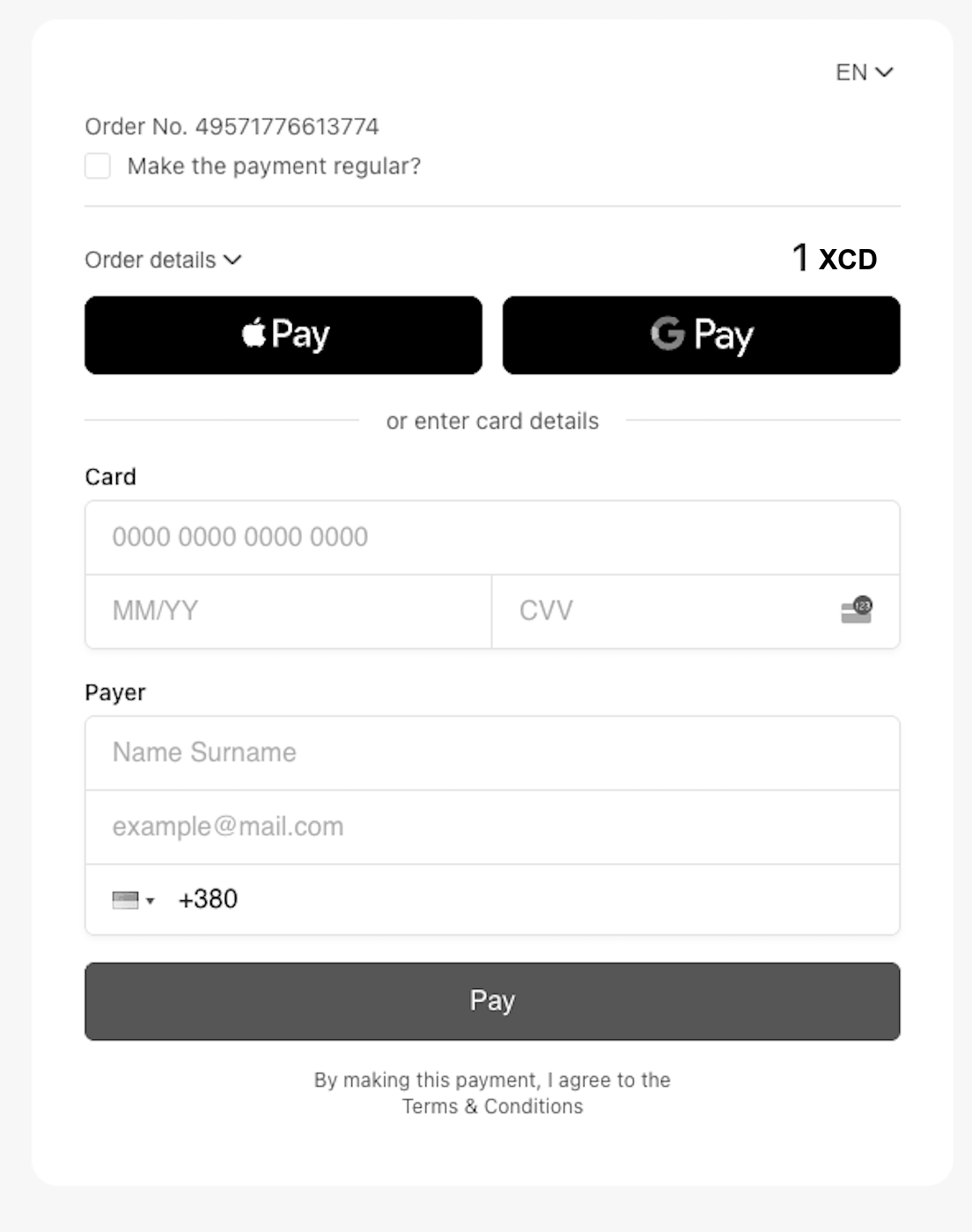
  2. Follow the checkout link, fill in all required fields and click “Pay”.
    Checkout view:
  3. The payment may immediately receive a final status of Success, or it may require 3DS/OTP verification. If the response contains "status_description": "3DS verification is required", open the URL in user_action_url and complete the ACS verification by clicking CONFIRM.
  4. Receive the webhook on your server — it will contain the payment status.
  • Payment by Visa and Mastercard
  1. Create a payment request.
  2. Use test card numbers according to the card brand.
    For example:
    Visa: 4242 4242 4242 4242
    Mastercard: 5454 5454 5454 5454
  3. Receive the webhook on your server — it will contain the payment status.
  • Payment via A/GPay wallets
  1. Create a payment request with the following values:
    • mode: hosted
    • currency: XCD
    • description: rejected (for unsuccessful payment)
  2. Follow the returned link — the checkout should open with the available payment methods.
  3. Select one of the A/GPay methods to pay and use any of your cards.
  4. Receive the webhook on your server — it will contain the payment status.
  • Payment with 3DS/non‑3DS
  1. Create a payment request with card data and include the order_3ds_bypass parameter.
    Use:
    For 3DS: order_3ds_bypass=always - test card 4242 4242 4242 4242
    Without 3DS: order_3ds_bypass=never - test card 5555 5555 5555 4444
    Details on using the 3DS protocol
  2. Receive the webhook on your server — it will contain the payment status.
  • Payment with products (for fiscalisation)
  1. Create a payment request including product data.

    products - an array of items to be fiscalized. There can be multiple products, but the total sum price*qty must equal the payment amount (amount).

    Example:

    {
    "amount": 6,
    "products": [
    {
    "name": "Apple",
    "amount": 2,
    "currency": "UAH",
    "qty": 3,
    "id": "1",
    "unit": "kg"
    }
    ]
    }
  2. Receive the webhook on your server — it will contain the payment status.
RefundRefund - returning funds from the merchant (or payment service) to the payer after a payment has been processed.
A refund can be issued only for a payment with status “success”.
It can be a full refund or a partial refund. Multiple partial refunds are allowed up to the original transaction amount.
  • Successful full refund
After a successful payment (Purchase):
  1. Perform a full refund for the entire amount - 10 XCD.
    Use the order_id of the transaction being refunded (this is the order_id of the successful Purchase).
  2. Receive the refund webhook on your server — it will contain the refund status.
  • Successful partial refund
After a successful payment (Purchase):
  1. Perform a partial refund for an amount less than 10 XCD (e.g., 5 XCD or 8 XCD).
    Use the order_id of the transaction being refunded (this is the order_id of the successful Purchase).
  2. Receive the refund webhook on your server — it will contain the refund status.
  • Successful full refund for a fiscalised payment.
After a successful payment (Purchase):
  1. Perform a full refund for the entire amount - 10 XCD.
    The refund request must also include details about the product being refunded.
  2. Receive the refund webhook on your server — it will contain the refund status.
Get receiptA receipt is a document for your customer that confirms a successful payment/transaction.
It can be in two formats: PDF or raw HTML.
Ways to obtain a receipt:
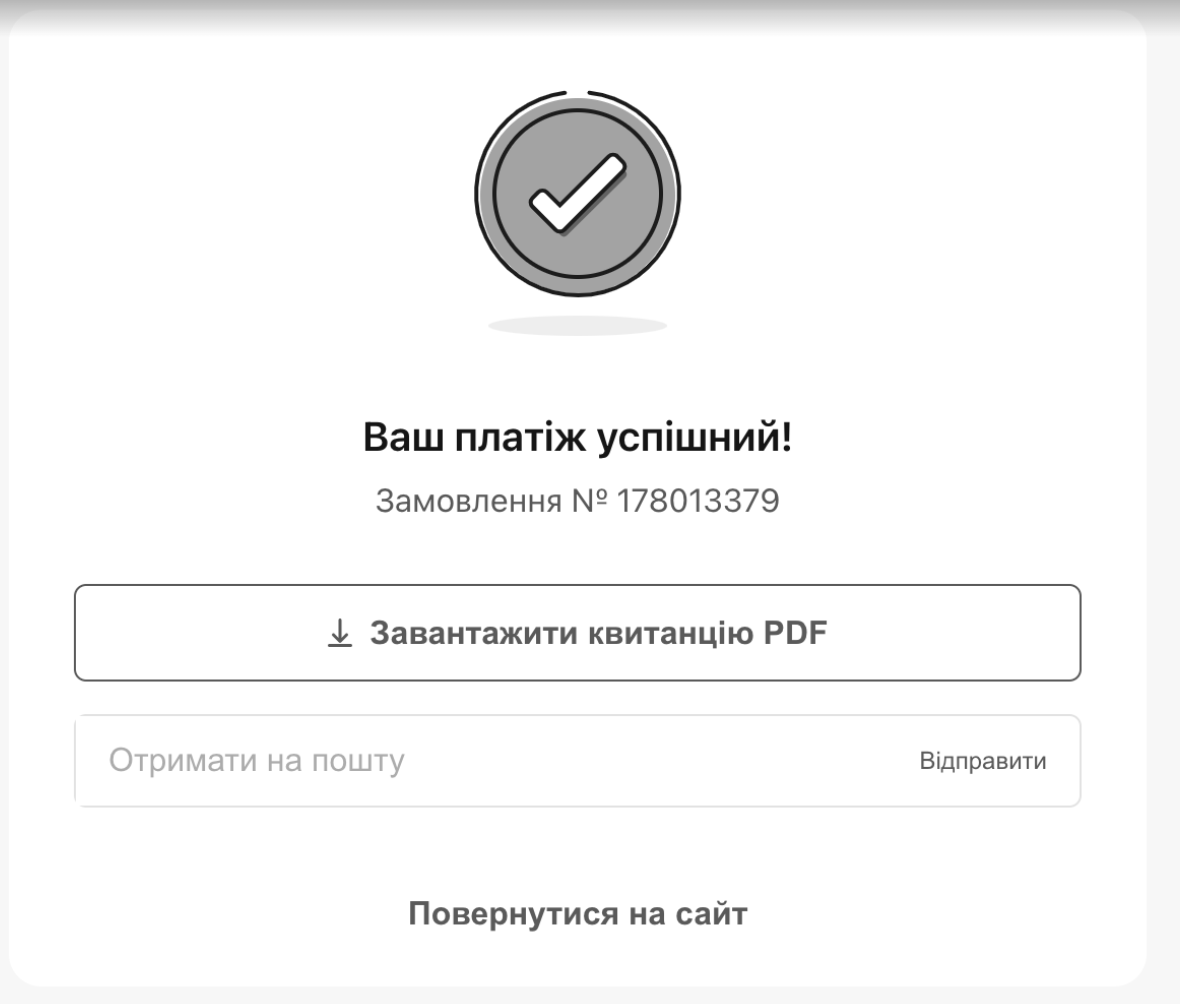
  1. After payment on the payment page: download PDF or send via email.
  2. API request
  3. In the Merchant Portal (customer account)
Full‑cycle test of One‑step payment (purchase):
Payment (card, A/GPay) with full or partial refund.
  1. Initiate a payment request for 10 XCD using the test card 4242 4242 4242 4242

    Example:

    $ curl -i "https://api.finline.io/api/v1/payment"
    -H "Content-Type: application/json"
    -H "X-API-AUTH: CPAY-HMAC-SHA256 ${API_KEY}:${SIGNATURE}"
    -X POST -d '{
    "pos_id": "${POS_ID}",
    "mode": "hosted",
    "method": "purchase",
    "amount": 1,
    "currency": "XCD",
    "description": "description_1",
    "order_id": "123",
    "order_3ds_bypass": "always",
    "server_url": "https://callback.blackhole.com/callback",
    "result_url": "https://example.com/result",
    "payload": "sale=true"
    }'
  2. Follow the checkout link, fill in all required fields and click “Pay”.
    Checkout view:
  3. Receive the response and ensure the payment status is Success.
    Checkout view:
  4. Create a request for a full or partial refund.

    Example:

    $ curl "https://api.finline.io/api/v1/refund"
    -H "Content-Type: application/json"
    -H "X-API-AUTH: CPAY-HMAC-SHA256 ${API_KEY}:${SIGNATURE}"
    -X POST -d '{
    "pos_id": "${POS_ID}",
    "order_id": "123",
    "order_currency": "XCD",
    "refund_amount": 8,
    "comment": "10101",
    "server_url": "https://callback.blackhole.com/callback/"
    }'
  5. Check that the refund status is Success.
  6. Receive the refund webhook on your server. Verify the refund status is Success.
Expected result: Funds are returned to the customer's account.